
Android with Chrome
Keep the current guide page on your Android home screen. Choose its name in Chrome and check which page the new icon opens.
Mobile guide
Save the Pappu guide directly from your mobile browser. Choose the rules, the illustrated board or a game listing first, then use Android Chrome or iPhone Safari to put that destination on your home screen.
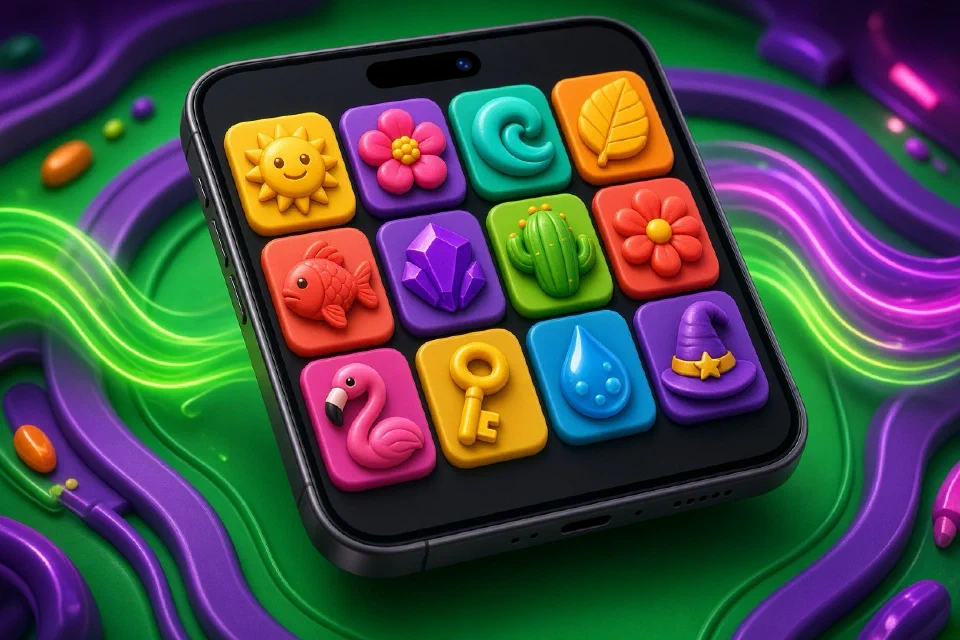
For JILI’s edition of Pappu Playing Pictures, start by identifying the browser page you need. You might want to read the rules with a picture in front of you, or you might be looking for a game in a partner lobby. Both can open in a browser. Choose between them before searching for a file to put on your phone. A saved link can take you straight back to the reading you left unfinished. For a shared bookmark, include the article subject in the name. Somebody looking for the picture names is unlikely to recognise a shortcut called only “Mobile”.
Look at the full title and the studio credit on a game listing. JILI publishes PAPPU as game 200. Compare that studio name with the names in the mobile search results. If what you are reading is an illustrated guide, you can save that too. Give it a name that describes the information you expect to find there.
Suppose you want to consult the instructions while learning to read a reveal. Open the guide in a tab of its own and stay on the article that answers your question. When you move to a game listing, keep it in another tab. On returning to your instructions you can check the heading before saving, which helps avoid turning a general home page into your bookmark by accident.
A browser bookmark is convenient if you usually begin inside the browser. A home screen icon is convenient if you usually begin on the phone’s main screen. In either case you are choosing an address to revisit. If you have the guide open on a computer already, the desktop board setup can be an easier way to see the image and read the explanations together.
| What you want to open | What to check before saving or installing |
|---|---|
| This illustrated board | The page address in the browser |
| The JILI browser game | Game title and studio in the catalogue |
| An Android store product | Developer line and store listing |
| A page saved on iPhone | Current Safari address and the proposed Home Screen name |
On Android, open the intended page in Chrome before using the browser menu. On an iPhone, open the page in Safari before bringing up its share actions. The phone matters because the same instruction, such as looking for a share sheet, can send an Android reader searching the wrong menu. Read the heading of the current page first and make sure it still names the material you wanted. If you are helping someone by phone, ask which browser they can see at the top of the screen. Knowing the handset alone may leave you describing the wrong menu.
The Android home-screen steps walk through creating and naming a Chrome shortcut. Choose a short name that tells you what the icon opens. If your most frequent question is how a round works, “Picture rules” gives a clearer reminder than “Game”. If you are saving an account lobby as well, keep the names distinct enough to recognise before opening either one.
The iPhone home-screen steps start in Safari’s Share menu. Look for Add to Home Screen, then review the proposed name. Safari can also offer Open as Web App. That option affects how the saved site opens. It still matters which page was in Safari when you chose Add, especially if you navigated away from the guide to inspect a game first.
Return to your home screen and try the new entry while you remember what it should show. For a rules shortcut, look for the article heading. For a board guide, find the illustration and its surrounding text. If you intended to save the partner lobby, check the service you reach before doing anything in an account. You can test where an icon points without placing a stake.
A home screen can hold an installed app and a saved website at the same time. Their icons may be similar enough that the picture alone tells you little. Work backwards from what you want tomorrow. Do you want the page with the butterfly example, the publisher’s description of its game, or the account where you found a game listing? Start at that exact destination when creating the shortcut. One person can reasonably want all three destinations. Choose distinct names before saving the first entry, while it is still easy to tell the three open tabs apart.
For example, imagine that you read a board article and then follow its partner button out of curiosity. Saving the page after that trip can give you a lobby shortcut. If you call the icon “Practice board”, the label will remind you of your intention while the saved address takes you somewhere else. Return to the article first, verify the heading and save the page from there.
Give the new icon a simple acceptance check. Open it from the home screen, read the page heading and identify one detail you expected to see. For the illustrated board that might be the selection strip below the reveal area. For a listing it could be the studio credit. For a lobby it could be the name of the account service you meant to visit.
If you arrive at the right illustrated board and the cards stay still, the shortcut has done its job. The guide displays a poster. Consult the practice-board loading guide if you had separately opened a publisher trial that stalled. A fresh shortcut to the same correct article will return you to the same drawing and instructions.
Google Play lists a similarly titled product under GEBO Games. JILI identifies its browser game in its own catalogue. Compare the developer information directly before treating an install offer as the route to the picture game you wanted. A familiar word in the title is often what brought you to the result in the first place. The studio name gives you a second piece of information about its identity. In a forwarded screenshot the developer sometimes falls outside the crop. Ask for the listing title and that line together before drawing any conclusion from the image.
Read the GEBO and JILI publisher checks if a store result has made the choice confusing. Reviews, update details and version labels belong to the product on that listing. An Android review about how an installation behaved tells you nothing specific about how JILI’s browser entry will open on an iPhone. Use instructions written for the platform and destination you selected.
If the next screen offers a package file, pause at the change in action. You began by looking for a website to revisit. Installing software is a different decision and deserves its own check of the file’s source and publisher. The Android package checks explain what to look at before opening a file found under the Pappu name.
One useful way to resolve a mixed set of search results is to write down a destination in plain words. “JILI’s picture-game listing in my browser” gives you a specific title and studio to find. “A home screen icon for the rules on my iPhone” directs you straight to Safari and the article. You can finish either task in the browser.
Use the page that is already open in your browser. For instance, you can start from the article about the browser shortcuts themselves. Once you have found the article you want, you can keep it as a bookmark or create an entry on the home screen. The latter starts in Chrome on Android or in Safari’s share actions on an iPhone. If an unrelated search result offers a file, return to the browser tab with your article and save from there.
It opens the address selected when you created it. That could be an individual article several links away from the home page. If you want a particular set of instructions, go past the site’s home page and open that article first. Remember the heading, then tap the new icon and look for those words. If a lobby opens when you wanted a guide, go back to the guide and save a separate entry for it.
Look for Chrome’s home screen shortcut option on Android or Add to Home Screen in Safari on an iPhone. Start in the browser you were using to read the website. Review both the page you have open and the label you will see on your phone. For someone who needs to glance at the illustrated board often, a descriptive name can save several taps through site navigation. It will also help distinguish the guide from an installed product with similar artwork.
Read who publishes the particular product in front of you. If the developer line is cropped from a screenshot, ask for that part too. JILI’s browser game is PAPPU, also called Pappu Playing Pictures. GEBO Games appears as the developer on a separate Google Play listing. If you are looking at a screen that only says “Download Pappu”, return to the product description and find the developer before deciding whether that button is relevant to the game you intended to open.
Start with the Android package guide. Distinguish the file you received from any store page mentioned alongside it. Before opening the file, check where it came from and which product you wanted. An attachment described as an older edition or named after the game gives you very little to check on its own. If the publisher and origin remain unclear, leave the file unopened. A web shortcut for the guide can be created from your browser independently of that package.
Yes. Use a desktop browser to read the guide or inspect the JILI browser listing. Keep the game listing and reference article open in separate desktop tabs. A larger window can make it easier to see the entire selection strip without losing sight of the reveal area. If you were following phone instructions only because a search result suggested downloading something, switch to the desktop guide. Its steps begin with the browser tab and the game identity you can read there.